Beginner / Audio
Start Web Audio Effects from an Explicit User Action
The four game demos are silent by default. Adding sound should not mean making an article produce audio as soon as it opens. This tutorial introduces a small, separate sound experiment that starts only after an explicit button activation.
What you'll build
You will use the runnable audio panel below to initialize an audio context, resume it when necessary, and play a short synthesized tone. The panel is implemented in assets/js/examples/audio-example.js; it does not silently change the existing game rules or add a remote audio dependency.
Try the sound example
Sound starts only after you press a button. Use a comfortable device volume.
Ready; no audio has started.
Prerequisites
Know asynchronous event handlers and JavaScript promises. The example uses Web Audio rather than an audio file. Read MDN's Web Audio best practices for browser-level guidance, then inspect the local helper used here.
Create the context in an action path
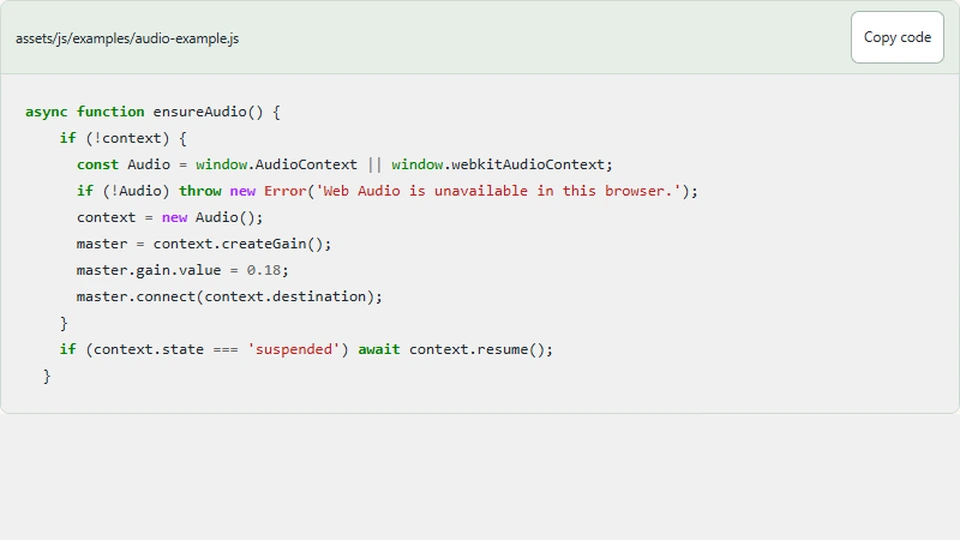
The example waits for a tone button before constructing its audio context. It creates a master gain node, connects that node to the output, and resumes the context if it is suspended. Browser audio policies can restrict playback before interaction, so initialization and resume belong to a user action rather than page load.
async function ensureAudio() {
    if (!context) {
      const Audio = window.AudioContext || window.webkitAudioContext;
      if (!Audio) throw new Error('Web Audio is unavailable in this browser.');
      context = new Audio();
      master = context.createGain();
      master.gain.value = 0.18;
      master.connect(context.destination);
    }
    if (context.state === 'suspended') await context.resume();
  }
The context is reused after the first activation. Creating a new context for every short effect would give each sound its own lifecycle and output graph unnecessarily. One context and a master gain provide a clear place for mute behavior and later volume controls.
The compatibility check reports a readable status if Web Audio is unavailable. It does not let a missing audio capability prevent the tutorial, source links, or silent game examples from working.
Separate unlocking from producing a sound
ensureAudio prepares the graph and returns after any resume operation. The button handler then calls tone with a frequency. This makes the two responsibilities visible: browser readiness and sound generation are related, but they are not the same function.
The actual oscillator and its envelope are explained separately in the next audio article. For now, notice that the context can exist while no sound is active. Initializing a resource should not automatically imply continuous playback.
Awaiting resume also means errors can be handled in the same action path. The example writes an error message to its status region rather than failing silently or throwing an unhandled promise rejection in the page console.
Make mute an explicit control
The panel's Mute button tracks an in-memory preference and exposes its pressed state. Muting prevents new tones and reduces the master gain for any sound already active. It does not replace the tone buttons with an automatic loop.
This preference is not stored across page loads in the example. If you choose to persist it, document the storage and make the choice clear. Do not assume that a previous interaction on a different page authorizes unexpected sound in every later article.
The master output starts at a modest gain, but that is not a guarantee about perceived loudness on every device. Users control their device volume, and sound design should avoid surprising sustained output.
Respond to page visibility
The helper suspends its context when the document becomes hidden. It does not automatically resume sound on return. The next explicit tone activation calls ensureAudio again and can resume the context through a user action.
This is separate from the game's simulation pause. Audio belongs to a browser resource graph, while game state belongs to the engine. If you integrate effects into a demo later, define how both lifecycles interact instead of assuming that stopping requestAnimationFrame also stops audio.
Test without relying only on hearing
Verify that loading the article does not create a context or play a sound. Press each tone button and inspect the visible status. Mute, press again, and confirm the panel reports the muted state. Then unmute and trigger another tone.
Also test an interrupted or suspended context and inspect the console for rejected promises. Automated browser checks can verify control behavior and errors, but actual listening on target devices remains useful for judging duration and comfort.
Next steps
Read the audio helper alongside the Memory Match source and identify a real match event where an optional effect could be triggered. Keep that integration behind an explicit sound choice. The first goal is a predictable user-controlled sound path, not a soundtrack or a claim that audio is required to understand the game.